1) Tap the + button to add a new Bank.
Tap the < button to return to the Main Menu
2) This screen to the left is after two banks have been added.
Tap the Bank name to go to the Bank Detail screen, see 3)
3) Bank Detail Screen
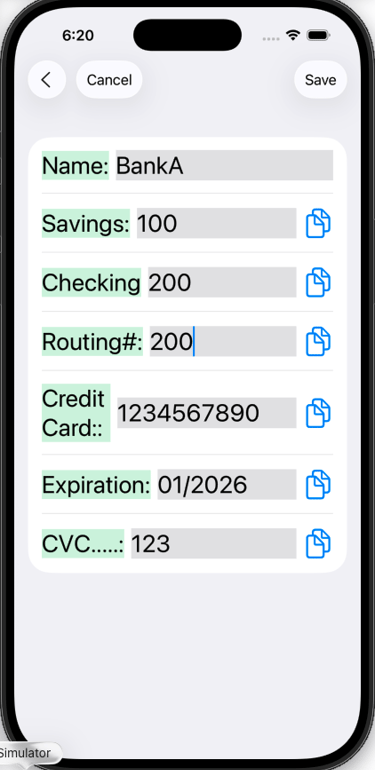
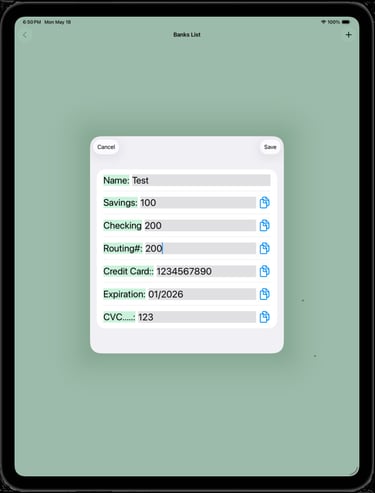
Enter only as much data as you want. Be mindful of your environment while you are entering banking information.
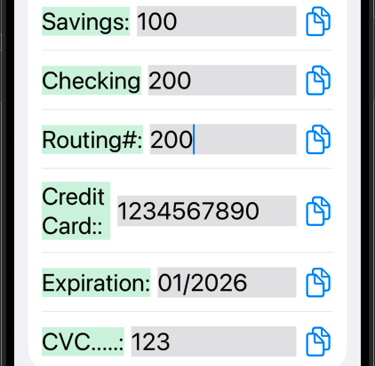
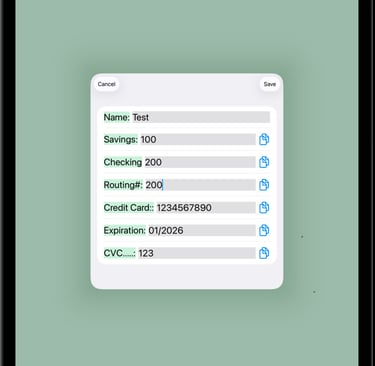
Tapping the double page icon on the right of a line, copies the contents of the line to the clipboard.
After navigating to the desired location, double tap the location and a Paste button will appear, see 4)
4) Paste Button
Here the double page icon to the right of Checking text box was tapped.
Then, the Routing line text box was double tapped. The line is highlighted and a Paste option appears below the line. See 5).
5) After the Paste button is tapped, the contents of the Checking text box are Pasted to the Routing text box.
This Paste option will allow you to paste information to other apps or websites.
Bank Lists


Contact
Questions? Reach out anytime, we're here.
support@zysygy.com
© 2026. All rights reserved.