1) Store List Screen
Navigate to store - tap store name in list.
Add a new store - tap the (+) button, see 2) below.
Return to Main Menu - tap the (<) button.
2) New Store Screen
Enter Store name in Text Box over "EnterStoreHere". Then tap "Save".
To add new item to list, tap "Add item to Store" button. See 4) below
To sort item list according to sort number, tap "Sort" button.
4) Item List
tap on item to see item detail, 5) below.
Drag item to left to delete it.
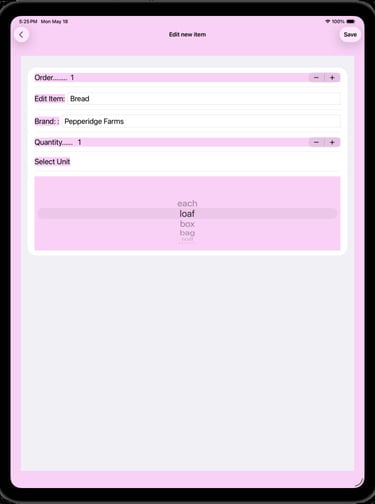
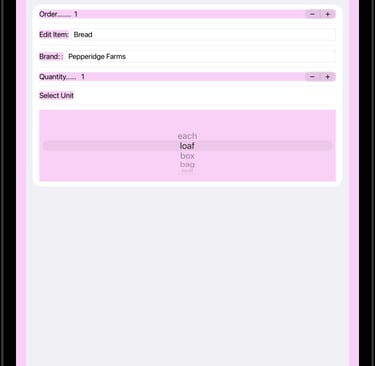
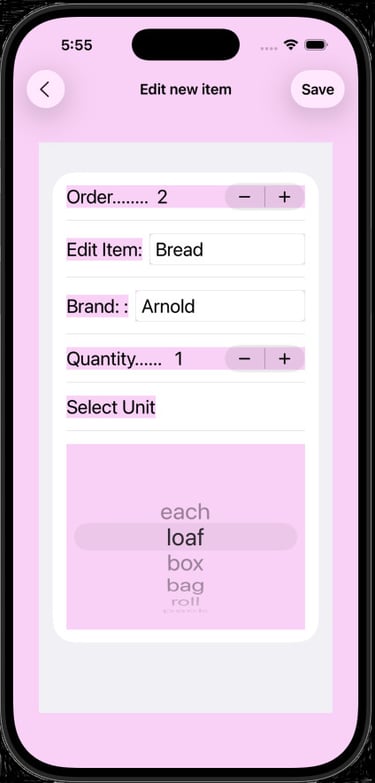
5) Item Detail
Enter Item name in Text Box over "newItem". Enter Brand Name. Then tap "Save".
Adjust sort number to rearrange where item appears in sorted list, 4) above. Select a number between 1-100 by tapping the (+) or (-) icon. Multiple items can have the same number.
In the "Select Units" picker, drag the units up or down. Unit will be selected when it is in the highlighted row.
3) Delete Store
Drag the store to the left. A Delete button will appear on the right of the line to confirm deletion. On the screen to the left, StoreB has been dragged to the left.
Other lists will use this same deletion method.
Store Lists



Contact
Questions? Reach out anytime, we're here.
support@zysygy.com
© 2026. All rights reserved.